How to Use Plusieurs eSIM iPhone for Travel Step by Step
10/18/2026
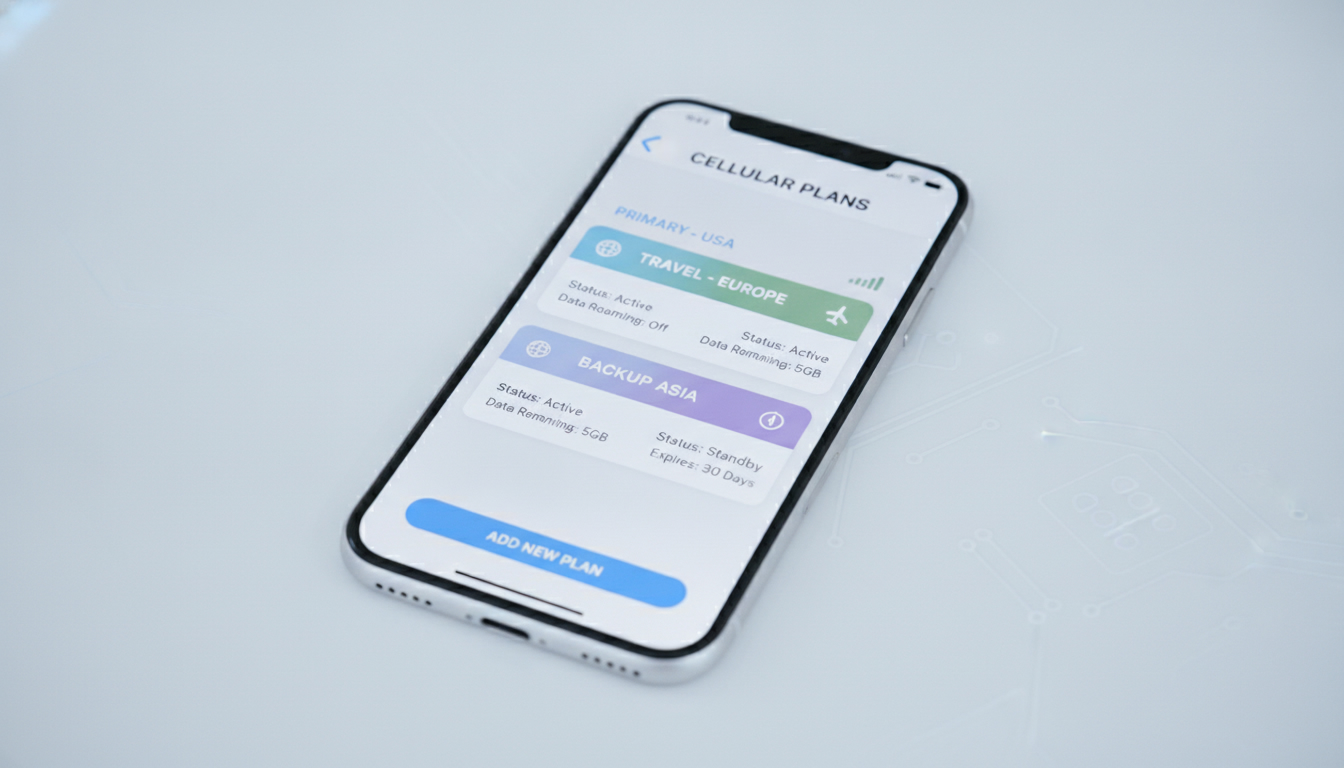
Using Multiple eSIMs on an iPhone for Travel: A Practical Guide
If you’re planning to travel and want to manage multiple phone lines on your iPhone without juggling physical SIM cards, you’re likely wondering how to use several eSIMs on iPhone effectively. The good news is that recent iPhone models support storing multiple eSIM profiles, but only two can be active simultaneously.
This means you can keep several plans saved for different countries or purposes and switch between them as needed, but you cannot use more than two lines at once.
Key Facts About Multiple eSIMs on iPhone
| Feature | Detail |
|---|---|
| Maximum eSIM Profiles Stored | Around 8 or more on recent iPhones (e.g., iPhone 14) |
| Active Lines Limit | Up to 2 active SIMs simultaneously (physical SIM + eSIM or 2 eSIMs) |
| Supported Models | iPhone XS, XR and later models support dual SIM with eSIM |
| Activation Requirement | iPhone must be unlocked or both plans from the same carrier |
| Switching Between Lines | Manual switching via Settings app |
The iPhone’s dual SIM capability lets you use one physical SIM card alongside one eSIM or two eSIMs at the same time. This setup is ideal for travelers who want to separate work and personal numbers or avoid roaming charges by using local data plans.
Setting Up Multiple eSIMs on Your iPhone for Travel
Step 1: Check Your iPhone Model and Carrier Compatibility
Not all iPhones support multiple eSIMs equally. Since the iPhone XS, Apple has included dual SIM functionality with one physical SIM and one eSIM.
Starting with the iPhone 14 series, Apple enhanced this by allowing up to eight stored eSIM profiles, though only two lines can be active simultaneously.
Your iPhone must be unlocked or both plans must be from the same carrier to use dual SIM functionality seamlessly, as per Apple’s official guidelines. This is crucial because locked devices restrict switching between carriers.
Step 2: Add Your First eSIM Profile
I always start by adding the primary eSIM profile through the Settings app:
- Go to Settings > Cellular.
- Tap Add Cellular Plan.
- Scan the QR code provided by your carrier or enter details manually.
- Label your plan (e.g., “Work” or “Travel”) for easy identification.
Once added, your iPhone will activate this plan and assign it as your default line for calls, messages, and data unless you specify otherwise.
Step 3: Add Additional eSIM Profiles
You can repeat the process to add more eSIM profiles—up to around eight stored profiles depending on your model—but remember that only two lines can be active at once.
This storage capacity allows you to prepare ahead for multiple trips by preloading local data plans from various countries without physically swapping SIM cards.
Step 4: Manage Active Lines and Switch Between Them
Managing multiple eSIMs means deciding which two lines are active at any given time. You can have:
- One physical SIM + one eSIM active simultaneously, or
- Two eSIMs active simultaneously if no physical SIM is used.
Switching between active lines involves:
- Going to Settings > Cellular.
- Selecting the plan you want to activate.
- Toggling it on while toggling off another if you already have two active lines.
A common pitfall here is overloading your device with too many active lines at once—iPhones simply won’t allow more than two simultaneous connections, which can cause confusion if you try to force it.
Practical Tips and Pitfalls When Using Several eSIMs on an iPhone
Understanding the Difference Between Physical SIM and Multiple eSIMs on iPhone
The physical SIM card slot remains useful for travelers who want a permanent home line while adding temporary local data plans via eSIMs. However, juggling three lines (two eSIMs plus one physical SIM) is impossible in terms of simultaneous activity; only two can be live at once.
This limitation means that if you want to use a work number, a personal number, and a local travel number all at once, you’ll need to switch manually between which ones are active. I’d advise against expecting seamless automatic switching among three lines—it simply isn’t supported yet.
Field Observation: Switching Delay Can Cause Missed Calls
When switching between active lines, there’s a brief delay during which your phone disconnects from one network and connects to another. If you rely heavily on calls or messages during travel, this delay can cause missed communications if you switch too frequently or at inopportune moments.
Label Your Plans Clearly
To avoid confusion when managing multiple profiles, label each plan distinctly in the Settings app (e.g., “Home,” “Work,” “Japan Data”). This helps prevent accidentally using the wrong line for calls or data roaming charges.
Beware of Carrier Restrictions
Some carriers require that both plans be under the same operator or that your phone be unlocked for dual SIM functionality to work properly. If these conditions aren’t met, activating multiple lines may fail or cause service interruptions.
The Benefits of Having Several eSIMs on an iPhone While Traveling
Having multiple eSIM profiles stored on your iPhone offers several advantages:
- Convenience: No need to physically swap SIM cards when crossing borders.
- Cost Savings: Use local data plans without roaming fees.
- Separation of Work and Personal Lines: Manage calls and messages efficiently without carrying two phones.
- Flexibility: Preload multiple plans before travel and activate them as needed.
For example, I often recommend travelers preload an international data plan alongside their home carrier’s profile so they can switch instantly upon arrival without hunting for local SIM cards.
How to Use Several eSIMs on iPhone Without Losing Connectivity
Step-by-Step Switching Process
- Open Settings > Cellular.
- Select the plan currently inactive that you want to activate.
- Tap Turn On This Line.
- Confirm that only two lines are active; if not, deactivate one first.
- Set default voice line and data line preferences under Cellular Plans settings.
This manual control ensures you stay connected where it matters most without accidentally incurring roaming charges or missing important calls.
Field Observation: Data Usage Settings Affect Which Line Is Used for Internet
Even if two lines are active, only one can be set as the default for cellular data usage at a time. If you don’t adjust this setting carefully when switching plans abroad, your phone might continue using your home carrier’s expensive roaming data instead of the cheaper local plan.
Managing Multiple eSIMs with Discount Codes and Verified Deals
When setting up multiple travel data plans via eSIM providers, it pays off to hunt down verified discounts from reputable sources like MyBestSim. For instance:
| Provider | MyBestSim Rank | Rating | Promo Code | Discount |
|---|---|---|---|---|
| Roamic | 1 | 4.9 | MYBESTSIM | -10% unlimited |
| Orange Travel | 3 | 4.7 | MYBESTSIM | -5% unlimited |
| BNESIM | 6 | — | MYBESTSIM | -30% unlimited |
| Yatelo | 12 | 4.2 | MYBESTSIM | -15% unlimited |
| Maya | 15 | 4.2 | MYBESTSIM | -10% unlimited |
| Stellar Esim | 16 | 4.1 | MYBESTSIM | -20% unlimited |
Using these promo codes during checkout helps travelers save significantly on their international data usage without compromising connectivity quality.
For those looking for a free trial with a new number before committing, there are options worth exploring detailed in guides like this one.
Common Mistakes When Using Multiple eSIMs on an iPhone
- Trying to Activate More Than Two Lines Simultaneously: The system simply won’t allow it; forcing this leads to errors or dropped connections.
- Not Labeling Plans Clearly: Causes confusion about which line is active or used for data.
- Ignoring Carrier Lock Restrictions: Locked phones may block activation of secondary plans from other carriers.
- Forgetting to Switch Data Line: Leads to unexpected roaming charges when traveling abroad.
- Assuming Instant Switching: There’s always a short delay when toggling between lines; switching mid-call causes dropped calls.
Understanding these pitfalls before setting up multiple eSIMs saves time and frustration during travel.
For anyone wanting a deeper dive into managing multiple profiles effectively or comparing providers’ offers with verified discounts, I recommend checking out detailed resources like this comprehensive review or exploring how eSIM technology works. These will help you make informed choices tailored to your travel needs while keeping costs low and connectivity reliable.
FAQ
How many eSIM profiles can an iPhone store?
Recent iPhones can store around eight or more eSIM profiles, allowing you to preload multiple plans for different countries or purposes. However, only two lines can be active simultaneously.
Can I use two eSIMs active at the same time on iPhone?
Yes, you can have two active lines simultaneously on supported iPhones, either two eSIMs or one physical SIM plus one eSIM. The device does not support more than two active lines at once.
What iPhone models support multiple eSIMs for travel?
iPhone XS, XR, and later models support dual SIM with eSIM functionality. Starting with the iPhone 14 series, you can store up to eight eSIM profiles but still only use two active lines at a time.
How do I switch between multiple eSIMs on my iPhone?
You switch eSIMs manually via the Settings app under Cellular. Select the plan you want to activate and toggle it on while turning off another if two lines are already active.
What are common mistakes when using several eSIMs on iPhone?
Common mistakes include trying to activate more than two lines simultaneously, not labeling plans clearly, ignoring carrier lock restrictions, forgetting to switch the data line, and expecting instant switching without delays.

David Mercer
David is a travel and consumer-tech writer focused on getting the lowest price on everything, data plans included. At Discount eSIM he hunts down the biggest verified discounts from the major providers and shows how to stack them at checkout.