How to Use Upesim eSIM for International Travel Step by Step
10/30/2026
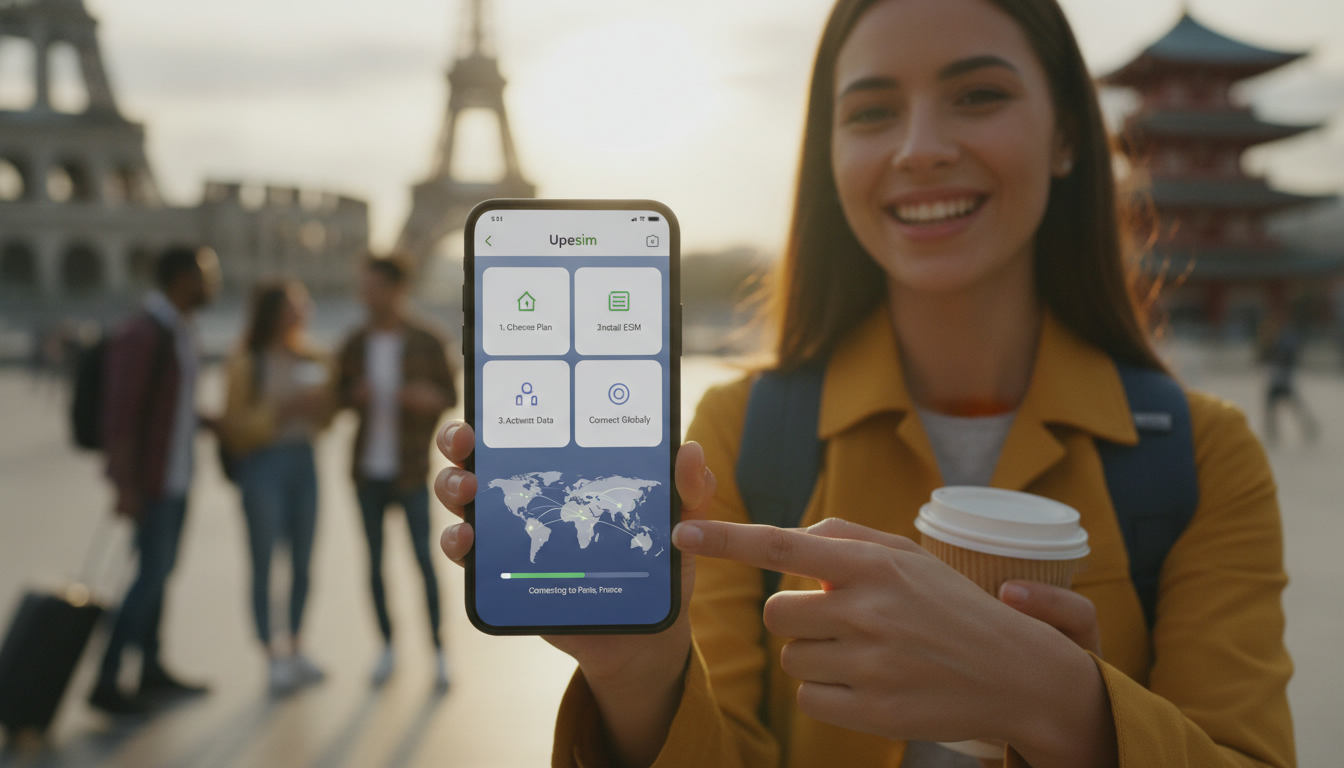
How to Use UPeSIM eSIM Services Effectively for International Travel: A Practical Traveler’s Guide
If you’re planning international travel and want to avoid the hassle of swapping physical SIM cards or dealing with expensive roaming charges, UPeSIM offers a prepaid eSIM solution that can keep you connected across multiple countries. UPeSIM specializes in travel eSIMs that work on 4G and 5G networks, including France’s Bouygues Telecom network, and covers regions like Europe, Asia, and South America.
But using UPeSIM effectively requires understanding the step-by-step process of activation, common pitfalls, and how to manage your data plans while abroad.
I always start by walking through the exact steps a traveler takes from purchase to activation because missing one detail can mean losing connectivity or wasting money. Here’s a practical guide based on how UPeSIM works and what you need to watch out for.
Getting Started with UPeSIM: What It Is and How It Works
UPeSIM is a French Mobile Virtual Network Operator (MVNO) that offers prepaid eSIM data plans tailored for travelers. Unlike traditional SIM cards, an eSIM is embedded in your phone and activated by scanning a QR code or entering activation details in your phone’s settings.
This means no physical card swapping is needed, which is especially handy when crossing borders.
UPeSIM offers data plans starting as low as €1.99 for 1 GB over 7 days on the Bouygues Telecom network in France, with options for Asia covering seven countries and Europe-wide plans. The service supports both 4G LTE and 5G speeds where available, ensuring fast internet access during your trip.
Key Facts About UPeSIM
- Prepaid eSIM plans start at €1.99 for 7 days with 1 GB data on Bouygues Telecom’s 4G/5G network.
- UPeSIM operates as an MVNO since 2018, focusing exclusively on travel eSIMs.
- Data plans cover multiple regions including France, Europe, Asia (7 countries), and South America.
- Activation involves scanning a QR code sent via email or app after purchase.
- Compatible with most modern iPhones and Android devices supporting eSIM technology.
- Customer support is available 24/7 online.
- Payments are secured online with multiple options.
- The official UPeSIM app is “Made in France” and simplifies plan management.
If you want to check whether your phone supports eSIM before buying, I recommend reading this detailed guide on how to check if your phone is eSIM compatible.
Step-by-Step Guide: Activating Your UPeSIM eSIM for Travel
Step 1: Choose Your Data Plan Based on Destination and Duration
UPeSIM offers region-specific prepaid plans that vary by data allowance and validity period. For example:
- France-only plan: €1.99 for 1 GB valid 7 days.
- Asia plan: covers seven countries with various data packages.
- Europe plan: multiple countries covered with flexible durations.
Selecting the right plan depends on your itinerary length and expected data usage. I always advise against buying too little data upfront because topping up abroad can be complicated or more expensive.
Step 2: Purchase the Plan Online and Receive Your QR Code
Once you select a plan on the UPeSIM website or app, you pay online securely. Within minutes, you receive a QR code via email or directly in the app.
This QR code contains the activation profile needed to install the eSIM on your device.
Step 3: Install the eSIM Profile on Your Phone
The installation process differs slightly between iPhone and Android but generally involves:
- Opening Settings > Cellular > Add Cellular Plan.
- Scanning the QR code provided by UPeSIM.
- Confirming installation and naming the new cellular plan.
A common mistake here is rushing through without disabling your physical SIM’s cellular data first. If both are active simultaneously without proper configuration, it can cause network conflicts or unexpected roaming charges.
Step 4: Configure Your Phone to Use UPeSIM Data Only When Needed
Because many travelers keep their home SIM active for calls or texts, it’s crucial to set the UPeSIM line as your default data source while abroad. On iPhones running iOS 14 or later, this is done under Cellular > Cellular Data > Select your UPeSIM line.
Failing to set this correctly means your phone might still use your home carrier’s roaming data by default, leading to high costs despite having an active UPeSIM plan.
Step 5: Monitor Data Usage and Manage Your Plan via the UPeSIM App
UPeSIM provides an app interface where you can track remaining data balance, validity period, and top up if necessary. I’ve noticed that travelers who ignore this step often run out of data unexpectedly because some apps consume background data aggressively.
The app also helps troubleshoot common issues like profile reinstallation or switching between plans if you have multiple destinations.
Common Pitfalls When Using UPeSIM eSIMs Abroad
Overlooking Device Compatibility and System Requirements
Not all phones support eSIM technology fully or have restrictions based on carrier locks or regional firmware. The GSMA specification SGP.22 governs remote SIM provisioning standards that UPeSIM follows, but device manufacturers may implement features differently.
If your phone doesn’t meet these system requirements or isn’t updated to recent OS versions (iOS 14+ or Android 10+), activation may fail or cause connectivity drops.
Activating Too Early Before Arrival at Destination
Activating your UPeSIM too early while still in your home country can lead to unexpected roaming charges if the profile tries to connect prematurely. The best practice is to activate once you land in the destination country or immediately before departure if you have reliable internet access there.
Ignoring Network Settings Leading to Slow Speeds or No Service
UPeSIM uses local networks like Bouygues Telecom in France but also partners with operators across Asia and Europe. Sometimes phones default to slower networks (3G) due to incorrect APN settings or roaming preferences not set properly.
I always check APN settings manually if speeds are slow after activation; incorrect APN leads to no internet access despite showing signal bars.
Real Traveler Example: Using UPeSIM for a Multi-Country Trip in Europe
Imagine Sarah traveling from Paris through Germany and Italy for two weeks. She buys a Europe-wide prepaid plan from UPeSIM covering all three countries with 5 GB valid for 14 days.
Upon arrival in Paris airport:
- She scans her QR code from her email on her iPhone.
- She disables cellular data on her French SIM card temporarily.
- Sets her new UPeSIM line as default for cellular data.
- Checks signal strength—connected immediately at LTE speeds.
- Monitors her usage daily via the app while traveling through Berlin and Rome without needing new SIM cards or reactivation steps.
Sarah avoided common traps such as activating too early (she waited until landing) and forgetting to switch default data lines (she confirmed settings right after installation). This ensured seamless connectivity throughout her trip without unexpected roaming fees.
Troubleshooting Tips When Using The UPESIM Software
UPeSIM’s interface is designed to be user-friendly but some issues can arise:
- QR Code Not Scanning: Make sure screen brightness is high; alternatively enter activation details manually if supported.
- No Data After Installation: Check if cellular data is enabled for the new line; verify APN settings match those provided by UPeSIM.
- Multiple Profiles Conflict: Remove old profiles from Settings > Cellular Plans if they interfere with current usage.
- App Crashes or Fails to Load: Ensure your device OS version meets minimum requirements; reinstall app if needed.
For detailed troubleshooting steps tailored to your device model, consult official guides like a UPESIM tutorial which walks through common scenarios visually.
Managing Finances While Using UPeSIM Abroad
Since you mentioned interest in managing finances better through tools like UPESIM, it’s worth noting that prepaid eSIMs help control spending by limiting upfront costs—no surprise bills from roaming fees later.
You can simulate usage costs before purchase using tools like the UPESIM simulation tool available on their platform which estimates how much data you’ll need based on destination and duration. This helps avoid overbuying or running out mid-trip.
Additionally, keeping track of remaining balance via the app prevents accidental overspending—a key habit I recommend for anyone trying to improve financial discipline during travel.
By following these practical steps—from selecting the right plan through careful activation and ongoing management—you’ll make full use of what UPESIM offers without falling into typical traps travelers face when switching from physical SIMs to eSIM technology abroad. For more insights into how eSIMs work generally, including compatibility checks and advanced tips, this comprehensive guide will deepen your understanding beyond just UPESIM’s system.
FAQ
What is UPeSIM and how does it work for travelers?
UPeSIM is a prepaid eSIM service designed for international travelers. It allows users to activate data plans without swapping physical SIM cards by scanning a QR code, providing seamless 4G/5G connectivity across multiple countries.
How do I activate a UPeSIM eSIM on my phone?
After purchasing a plan online, you receive a QR code via email or app. To activate, scan the QR code in your phone’s cellular settings, disable your physical SIM’s data if needed, and set UPeSIM as your default data line.
Can UPeSIM help me control my travel data expenses?
Yes, UPeSIM offers prepaid plans with upfront costs, helping you avoid surprise roaming fees. The app lets you monitor data usage and top up as needed, making it easier to manage your travel budget effectively.
What common mistakes should I avoid when using UPeSIM abroad?
Avoid activating your eSIM too early before arrival, neglecting to set UPeSIM as your default data line, and ignoring APN or network settings. These errors can cause roaming charges, slow speeds, or loss of connectivity.
Is my phone compatible with UPeSIM eSIM technology?
Most modern iPhones and Android devices supporting eSIM can use UPeSIM. Ensure your device runs iOS 14+ or Android 10+ and is not carrier-locked. Checking compatibility before purchase prevents activation issues.

David Mercer
David is a travel and consumer-tech writer focused on getting the lowest price on everything, data plans included. At Discount eSIM he hunts down the biggest verified discounts from the major providers and shows how to stack them at checkout.